
How to generate SRT and VTT subtitles
- Open the studio and drop in your video (MP4, MOV, WebM) or audio file (MP3, WAV, M4A up to 4 GB). Your video is never uploaded.
- Click Find words and choose On this device (free, unlimited, 20+ languages) or Cloud (ElevenLabs Scribe v2, 90+ languages, custom vocabulary box for names and jargon).
- Review the transcript: click any word to edit its spelling, press Space inside a word to split it, press M to merge two words, or press B to force a clean line break.
- Under Layout, choose how many words appear per cue and whether subtitles use one or two lines.
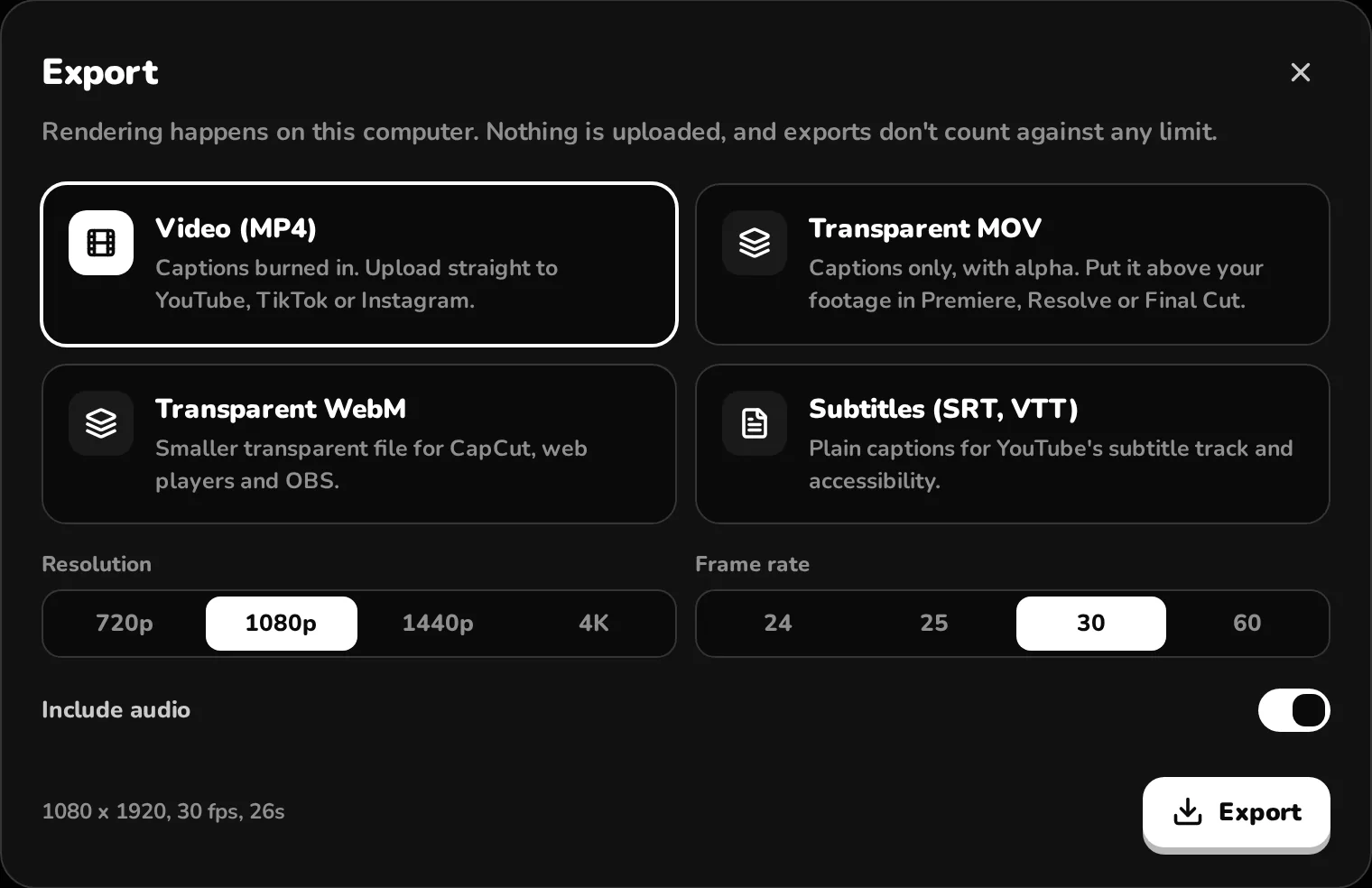
- Click Export and select Subtitles (SRT, VTT). Both files download immediately with no watermark.
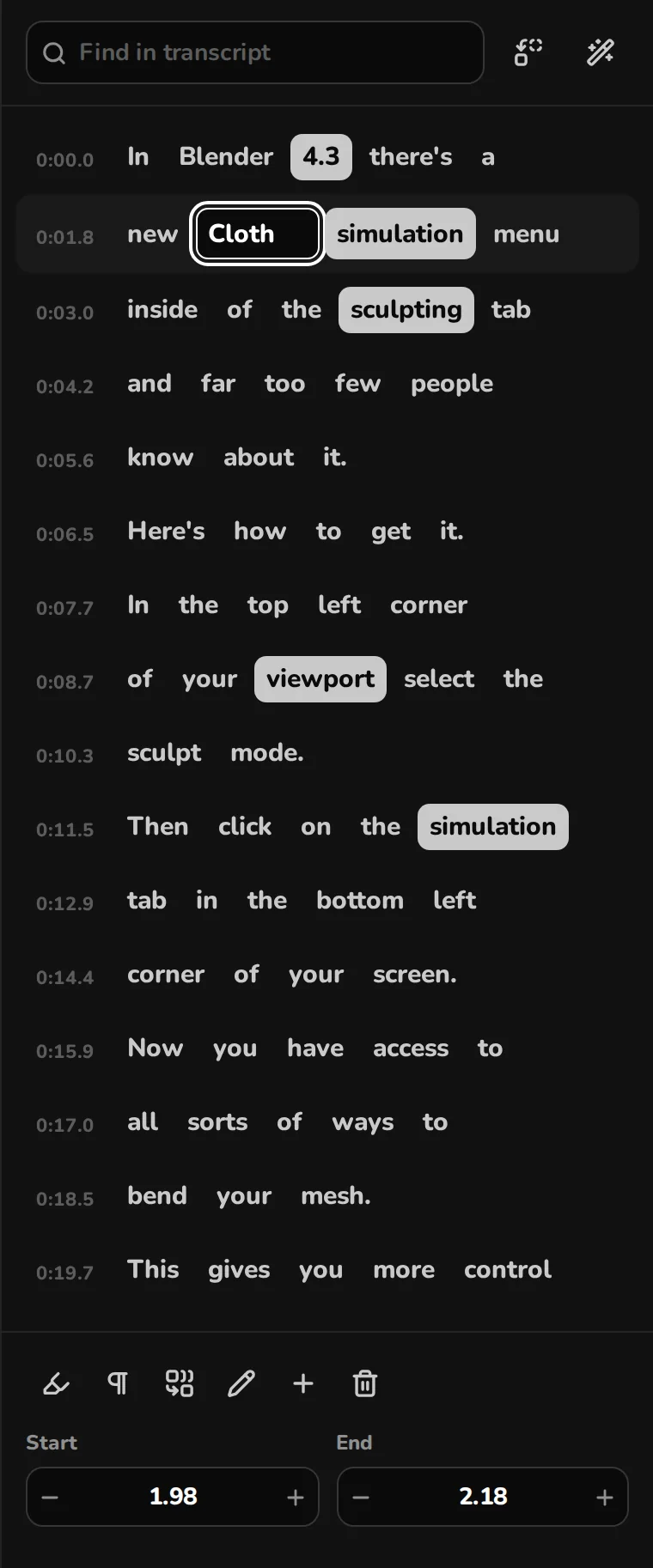
Clean formatting, timed to the millisecond
Every caption group exports as a sequential cue with start and end timestamps accurate to the millisecond. Even if your visual preset displays ALL CAPS on screen, the exported SRT and VTT files preserve your natural upper- and lower-case typing and punctuation.
You get both formats at once: SubRip (.srt) for YouTube Studio, Premiere Pro, DaVinci Resolve, Final Cut and VLC, plus WebVTT (.vtt) for HTML5 web video players.
Uploading your SRT to YouTube Studio
- Open YouTube Studio, click Subtitles in the left sidebar and select your video.
- Click Add language and pick your video's spoken language.
- Under the Subtitles column, click Add › Upload file.
- Select With timing, choose the .srt file from Cuecaps and click Publish.
Giving YouTube a verified SRT track replaces error-prone auto-captions for viewers who use closed captions (CC) and indexes your exact terminology for search.
Export burned-in MP4s and SRTs from the same project
Short-form clips on Shorts, TikTok and Reels need burned-in animated captions for muted feeds, while long-form videos and accessibility tracks need raw SRTs. In Cuecaps, one transcript powers both: export your styled 9:16 MP4 and your clean SRT/VTT files from the same session.
Questions
Are SRT and VTT exports completely free?
Yes. Exporting SRT and VTT files is free and unwatermarked on the Free plan, which includes unlimited on-device transcription and 10 cloud transcription minutes every month. You just need a free account to download.
Can I generate subtitles from an audio-only MP3 or WAV?
Yes. Drop in an MP3, WAV or M4A audio file instead of a video. You get the exact same waveform timeline, word editor and SRT/VTT export.
What if I already have an SRT file that is out of sync or needs converting?
Use our free, no-login browser utilities: the SRT ⇄ VTT Converter (/tools/srt-to-vtt) or the Subtitle Timing Fixer (/tools/shift-subtitles).
Try it on your video
You can also drop a file anywhere on this page. Or tryTry the demo clip